Communication
Communication is the final step of data storytelling. It is where insights turn into action. Columns integrates with modern workspaces, with Slack as the primary integration.
Slack
Columns Slack integration supports three main scenarios:
- Use Columns in Slack.
- Share visual story to Slack any time.
- Real-time collaboration.
All scenarios require installing the Columns Slack app in your workspace. Install it from the Slack App Directory or the Columns for Slack page.
Use Columns in Slack
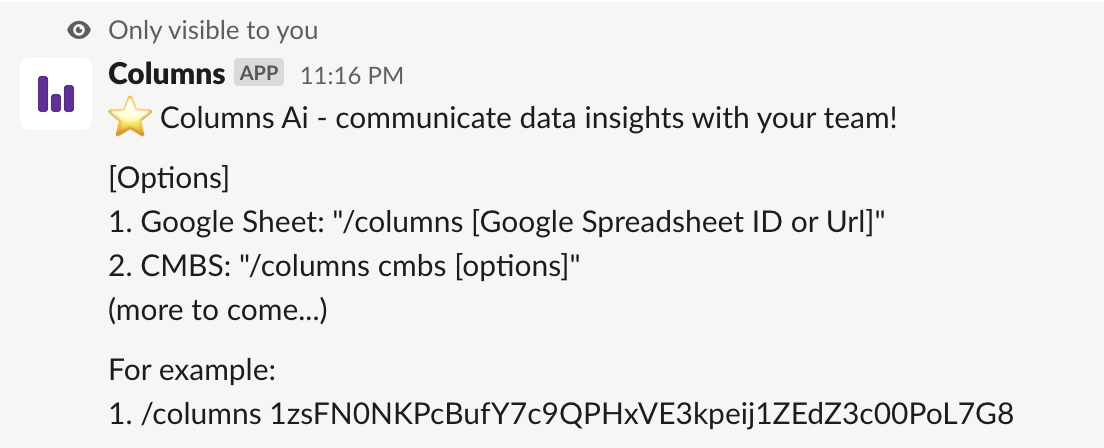
After installation, use the /columns command in Slack.
You can search your data catalog, list datasets, and start a live analysis session.
People in the channel can follow and collaborate in real time.
Examples:
Share visual story to Slack
You do not need to start from /columns every time.
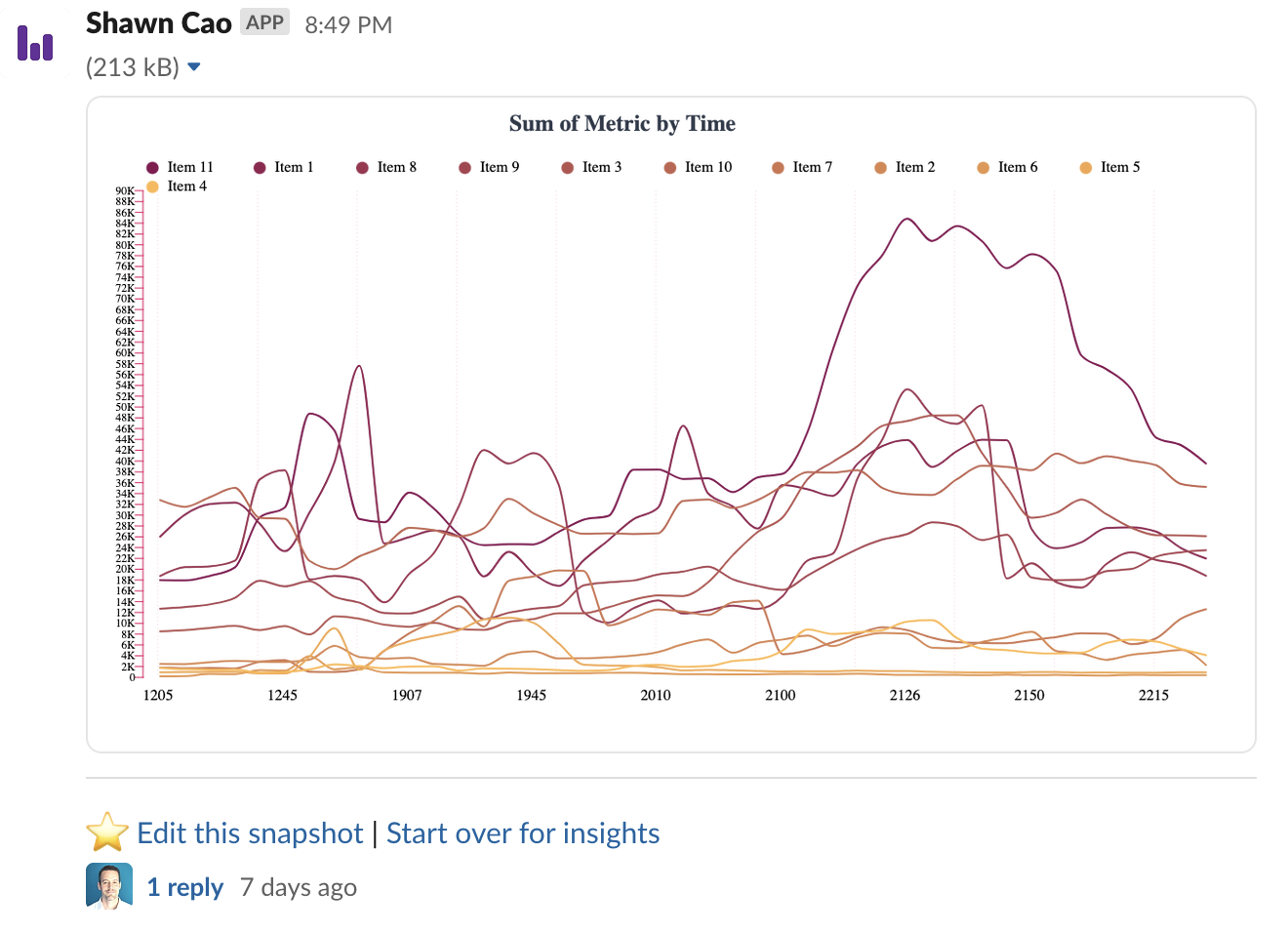
If your profile is connected to Slack and a default channel is configured, you can send visuals directly from the visualizer to ask for feedback.
Click the Slack button in the visualizer.

Real-time collaboration
Teams can iterate through shared snapshots. Participants can edit from previous snapshots and reshare updates quickly. Columns also supports in-canvas comments for collaborative discussion.
Download
Besides sharing and publishing, you can download visuals for external use.
Columns supports downloads in SVG and PNG through the Download button.
Personal Default Style
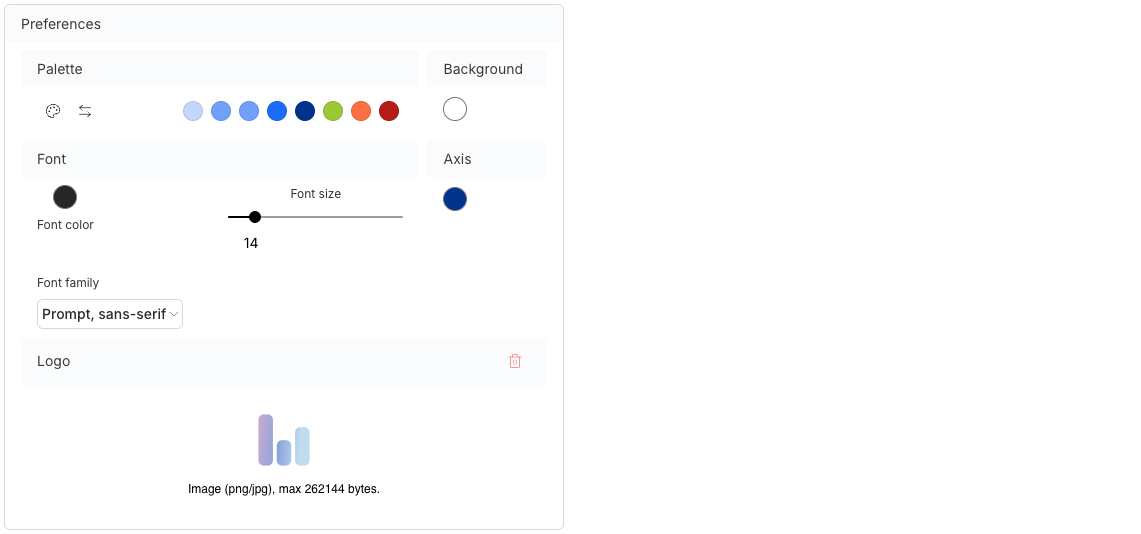
Columns lets you preset a personal style profile, including default font, color palette, and logo.
These preferences apply by default when creating new visuals. You can still override styles per visual.
To configure this, open your Account page and go to Preferences.