Account & settings
This page covers signing in, the User Settings dialog, and team workspaces.
Sign in
Go to columns.ai/signin. You can sign in with:
- Slack
- Email and password
- Single sign-on (SSO), for team plans that use SAML or Okta
The first time you sign in, Columns creates your workspace and adds $10 of free credit.
Some integrations ask for extra authorization the first time you use them. This lets Columns read a private Google Sheet, post to Slack, or read a Notion page on your behalf. You can review and reconnect these services later from your profile.
User Settings
Open Settings from the bottom of the left navigation menu in any Columns app. The dialog has four tabs.
Account
- Name, Email, Tier, and Credits (your remaining balance in dollars).
- Statistics: how many flows, visuals, and sources you have.
- Delete Account: permanently removes your account and its data. You'll be asked to confirm.
Usage
- Tier: your active plan, with an Upgrade menu (Get Premium or Get Platinum).
- Pricing: the per-row price of each plan.
- Usage: rows processed, your current price, total cost, and remaining credits. If your balance runs low, a Recharge button appears.
- Usage Calculation: how each product counts rows. See Pricing & usage.
System
- API Key: your secret key, with Copy and Renew buttons. Renewing creates a new key, and the old key stops working right away. Any tool that uses it, such as the Gmail add-on, must be updated.
- Theme: switch the app between light and dark mode.
- Starter Exercise: reactivate the guided Flow exercise if you want to go through it again.
- Support: book a 1:1 meeting with the Columns team.
Partner
Columns has a referral program. This tab shows your referral URL (https://columns.ai/?ref=…) and how it is performing: clicks, sign-ups, and revenue. Partners earn 20% of revenue from the customers they refer. Learn more at columns.ai/partner.
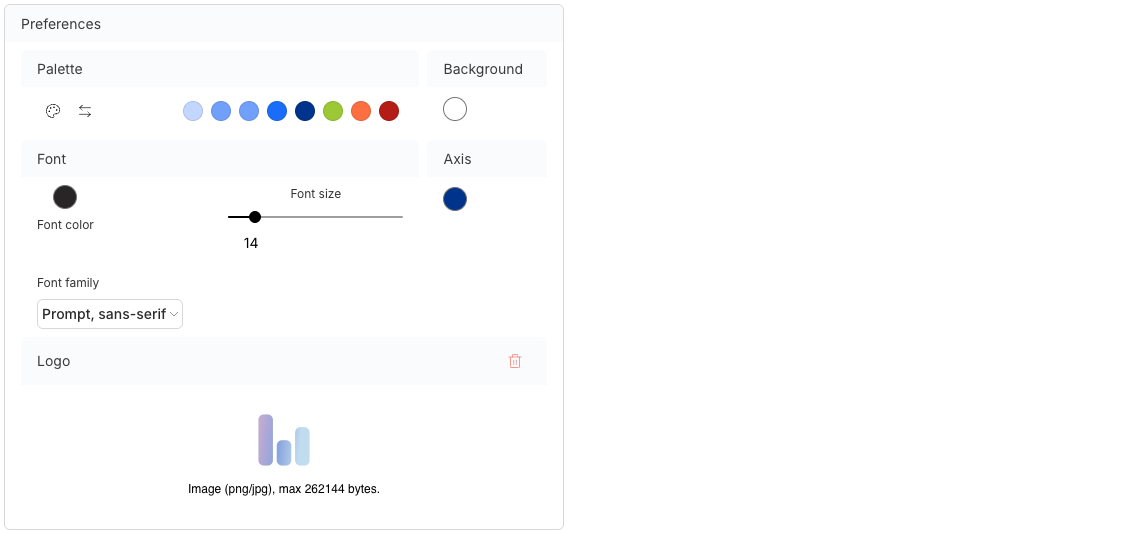
Personal style preferences
You can set a default logo, font, and color palette that new graphs use automatically. Open your profile and go to Preferences. You can still change any of these on an individual graph. See Customize a chart.
Teams
Teams share a workspace, so members can work on the same data and graphs.
- Create a team by redeeming a multi-seat code at columns.ai/redeem.
- Admins add and remove members and manage the team from columns.ai/team.
- Switch between your personal workspace and team workspaces at any time.
- SSO with SAML or Okta is available for team plans. Contact support@columns.ai to set it up.
Graphs shared at the team level can be opened by every member of the team.