Alerts
A flow transforms your data. An alert watches the result and tells you when something needs attention: a spike, a drop, or a threshold crossed. You write the rule in plain language.
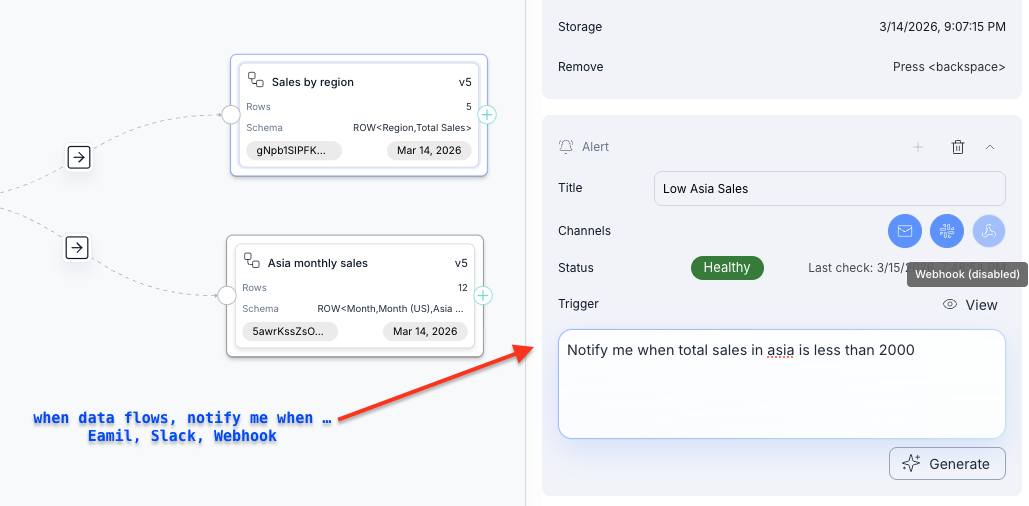
Create an alert
- Click the node you want to watch. The node must have data.
- In the Alert section of the Selected Node tab, click + (Create alert).
- Describe when to trigger. For example:
total sales in pacific is less than 3000any order amount is greater than 10000daily signups drop below 50
- Click Generate. Columns writes the trigger logic and runs a first check right away.
- Choose one or more Channels (see below).
Each node can have one alert. To see exactly how a rule is evaluated, click View next to Trigger.
How alerts are checked
An alert is evaluated against the node's rows, and it triggers if any row matches the rule. Checks happen:
- when you click Generate,
- after every successful run of the flow, whether scheduled or a Rerun.
To check an alert regularly, put the flow on a schedule.
| Status | Meaning |
|---|---|
| Not Run | The alert hasn't been checked yet. |
| Healthy | The last check found no matching rows. |
| Triggered | At least one row matched, and notifications were sent. |
| Error | The rule couldn't be evaluated. Check the intent against the node's current columns. |
Last check shows when it was last evaluated.
Alerts look at individual rows. To alert on a total, such as "weekly revenue under $5,000", first add an edge that computes the total. Then put the alert on that node.
Channels
Click a channel icon to configure it. Each channel has an Enabled switch.
Email
Alerts go to your account email by default, and you can change the address. Click Check verification, open the verification email, and confirm. Then click Check verification again. You can save the channel once the address is verified.
Slack
- Click Connect Slack and sign in to your Slack workspace.
- Click Add to Slack to install the Columns app.
- Choose the Slack channel that should receive alerts.
Messages look like "Flow Alert: <title> in <flow>". They include the trigger, the matching data, and a link back to the flow.
Webhook
Enter a Webhook URL. When you save, Columns sends a test POST with "event": "flow.alert.verification", and your endpoint must reply with HTTP 200. After that, each trigger is delivered as a JSON POST to the URL. Use it to connect Zapier, Make, n8n, or your own systems.
Edit or delete
Change the intent and click Generate to update the rule. Click the trash icon (Delete alert) to remove it.